Overview
A Schedule Rule is a simple cleaning rule that runs automatically on a fixed timer. You give it a name, choose how often it should run, and select which types of browser data to clean — that's it.
Once a schedule rule is active in your extension, it fires at the chosen interval in the background. No manual action needed.
30m
Every 30 minutes
1h
Every hour
1d
Once a day
Creating a Schedule Rule

- 1Go to Dashboard → Schedules
- 2Click "Add Schedule Rule" — a new rule accordion appears at the top of the list
- 3Click the rule to expand it and fill in the three fields: name, interval, and what to clean
- 4Click "Add" to save. The rule is now saved to your account
- 5Activate the rule in the Broom extension to start the timer
Schedule names must be unique. If you try to save two rules with the same name, you'll see a validation error.
Choosing an Interval

The When to Clean dropdown has three options. Pick the one that matches how aggressively you want to clean.
After 30 minutes
- ✓Most aggressive cleaning
- ✓Best for high-privacy needs
- ✗May log you out of sites often
After 1 hour
Recommended- ✓Balanced privacy and convenience
- ✓Works well for most users
- ✓Sessions stay a reasonable length
After 1 day
- ✓Minimal disruption to sessions
- ✓Good for light daily maintenance
- ✗Less effective against trackers
What to Clean
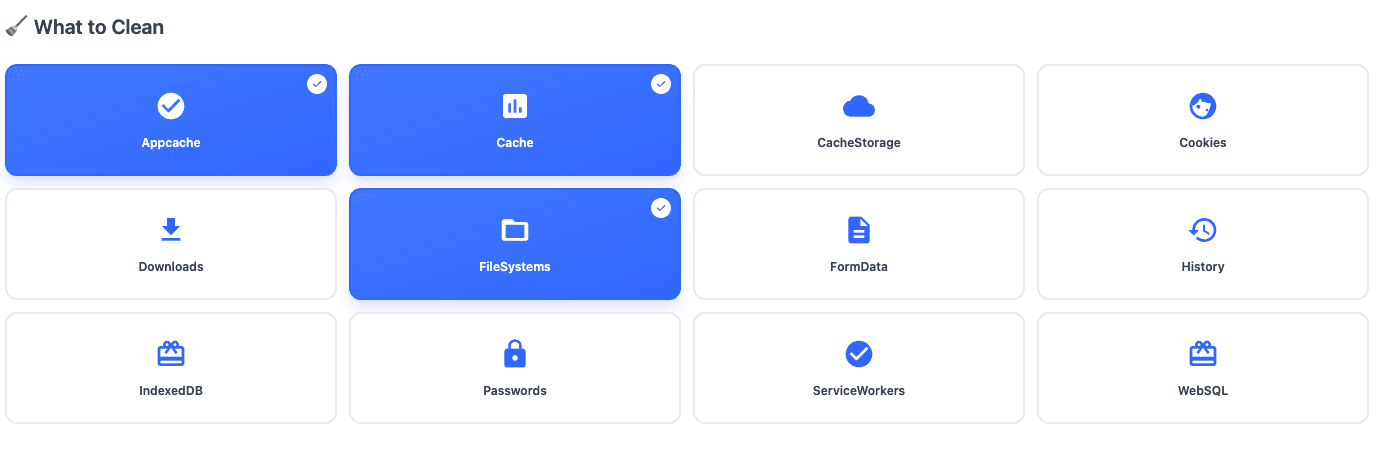
Toggle the data types you want the schedule rule to clear each time it runs. You can select any combination.
Cookies
Login sessions & trackers
Cache
Temporary website files
History
Browsing history & URLs
Downloads
Download history records
FormData
Autofill form entries
Passwords
Saved login credentials
IndexedDB
Web app databases
ServiceWorkers
Background PWA scripts
CacheStorage
Service worker cache
FileSystems
Virtual file systems
AppCache
Legacy offline cache
WebSQL
Deprecated SQL storage
At least one data type must be selected to save the rule. Enabling Cookies is the most common choice for privacy-focused schedules.
Activating in the Extension
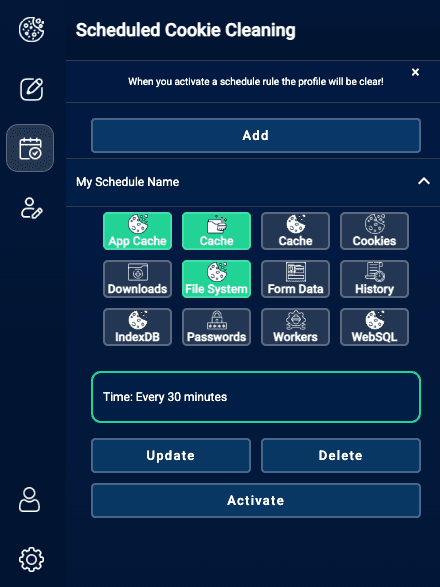
- 1Open the Broom Cookie Cleaner extension in your browser toolbar
- 2Navigate to the Schedules tab inside the extension
- 3Click on your saved schedule rule to activate it
- 4An "Active" badge appears — the timer is now running
If you update a schedule rule in the dashboard, deactivate and reactivate it in the extension for changes to take effect.

Your schedule is running!
Broom will clean the selected data types every time the interval elapses. No further action needed.
Ready to set up your first schedule?
Head to the Schedules dashboard and create a rule in under a minute.