Overview
Profile Rules let you create custom cleaning configurations that determine when data is cleaned, what types are removed, and where the rules apply.
✓ Flexible Scheduling
Trigger cleaning on time, browser events, or inactivity
✓ Granular Control
Choose exactly which data types to clean
✓ Domain-Specific
Target or protect specific websites
Creating a Profile
- 1Go to Dashboard → Profiles
- 2Click "Add New Profile" at the top of the page
- 3A new profile accordion appears at the top — click to expand it
- 4Configure settings using the sections below, then save
Profile Name

Give your profile a descriptive name that reflects its purpose.
Naming examples
Work Profile
Work-related browsing data
Privacy Mode
Aggressive tracking cleanup
Social Media
Social platform cookies
Banking Sessions
Banking data after use
When to Clean
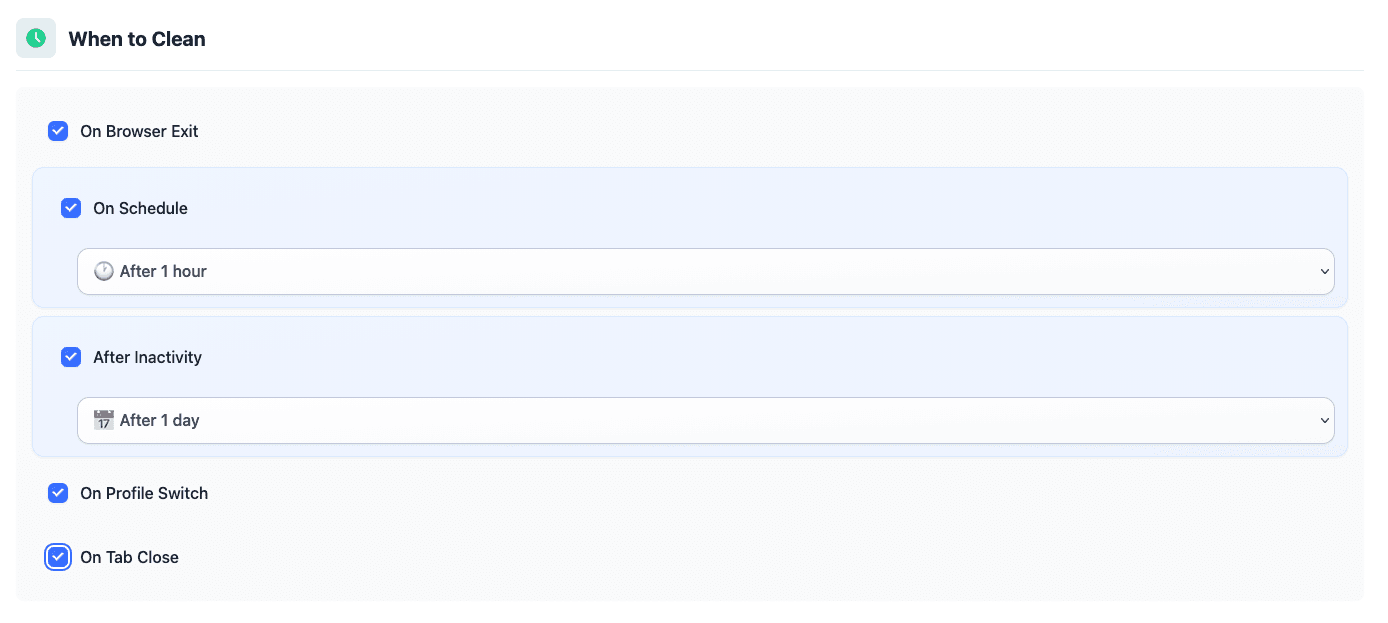
Choose the trigger(s) that activate cleaning. Multiple options can be selected simultaneously.
On Browser Exit
Cleans data when you close the browser completely.
Best for: General privacy — ensures no data persists between sessions
On Schedule
Cleans at fixed intervals: 30 minutes, 1 hour, or 1 day.
Best for: Regular maintenance — keeps the browser clean throughout the day
After Inactivity
Cleans after you've been idle for the selected period.
Best for: Security on shared computers — cleans when you step away
On Profile Switch
Cleans when switching to another profile.
Best for: Context switching between work and personal
On Tab Close
Cleans data immediately when closing a tab.
Best for: Immediate cleanup after visiting sensitive sites
This is a comprehensive guide!
The full article continues with detailed sections on What to Clean (12 data types), Domain-Based Rules, and Saving & Activating. Visit your Profiles Dashboard to follow along with the interface.
What to Clean
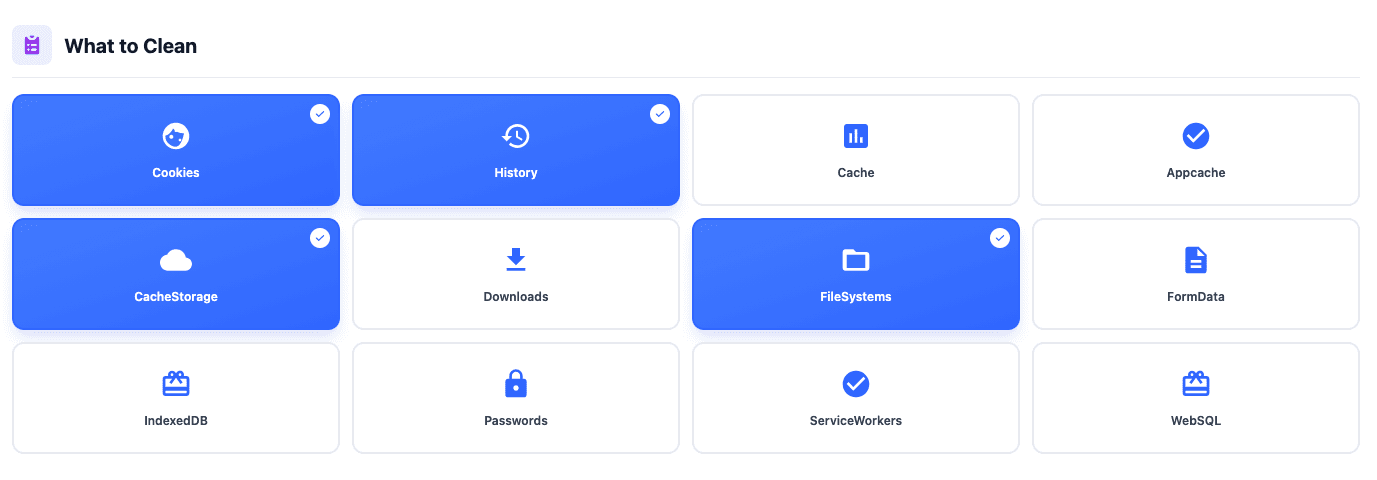
Choose which data types to include. Select any combination of the 12 available types.
Cookies
Login sessions & tracking
History
Browsing history & URLs
Cache
Temporary website files
Downloads
Download history records
FormData
Autofill form entries
Passwords
Saved login credentials
IndexedDB
Web app databases
ServiceWorkers
Background PWA scripts
CacheStorage
Service worker cache
FileSystems
Virtual file systems
AppCache
Legacy offline cache
WebSQL
Deprecated SQL storage
Most data types (except Cookies and History) affect the entire browser regardless of domain-based rules.
Domain-Based Rules
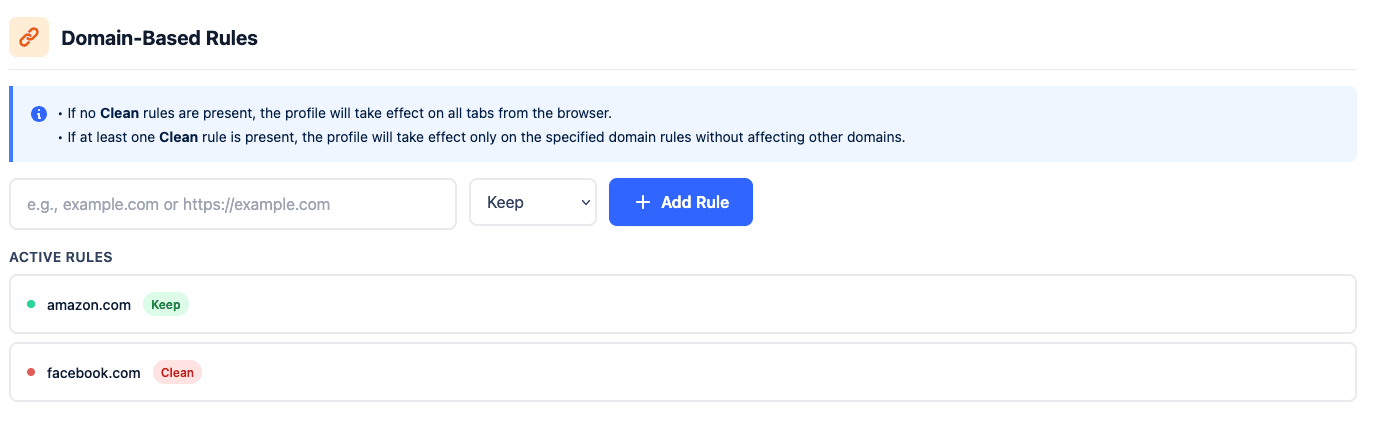
Keep Rule (whitelist)
Preserve data from specific domains — everything else gets cleaned.
gmail.com — Gmail data is preservedClean Rule (target)
Only clean specific domains — all other sites are untouched.
facebook.com — only Facebook cleanedHow domain rules interact
Saving & Activating

Saving changes
- 1Click "Save Profile" (green button) at the bottom of the accordion
- 2A success message confirms the save
- 3For existing profiles, the button reads "Update Profile"
If you update an existing profile, deactivate and reactivate it in the extension for changes to take effect.
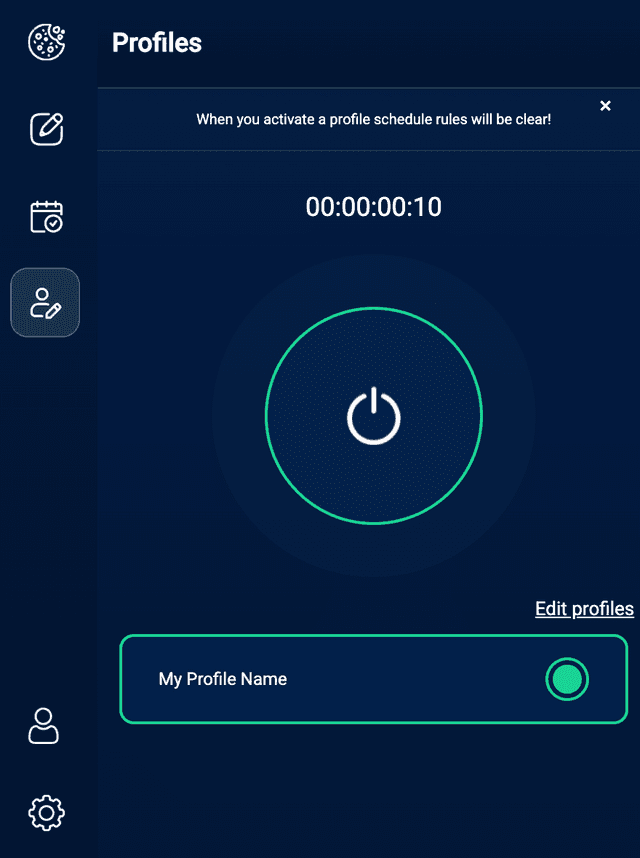
Activating in the extension
- 1Open the Broom Cookie Cleaner extension in your browser toolbar
- 2Navigate to the Profiles tab inside the extension
- 3Click your saved profile to activate it
- 4An "Active" badge appears when it is running

Your profile is active!
The browser will now clean data according to your profile rules. Only one profile can be active at a time.
Ready to create your first profile?
Head to the Profiles dashboard and start protecting your privacy in minutes.